
Duration: 3 minutes
Based on:
1. Set-Up
1.1
1.2 Restore state from backup copy
Copy the code, right-click in PowerShell window to paste it and press Enter to execute
cd ~/Documents/git-workoutsCopy-Item bak-2.5 current -Recurse -Forcecd current2. Create branch
2.1 Create feature branch
Type in PowerShell prompt and press Enter to execute
git branch feature2.2 List branches
Type in PowerShell prompt and press Enter to execute
git branch
3. Make changes in master branch
3.1 Open contacts.md in Notepad
Type in PowerShell prompt and press Enter to execute
notepad contacts.md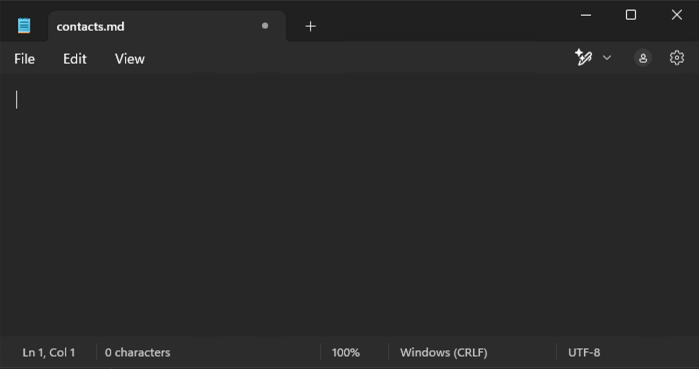
3.2 Add title and save changes
Type in the Notepad window
# ContactsPress Ctrl+S to save changes
Press Ctrl+W to close the window
3.3 Stage changes
Type in PowerShell prompt and press Enter to execute
git add -A3.4 Commit changes
Type in PowerShell prompt and press Enter to execute
git commit -m "Add title into contacts.md"4. Make changes in feature branch
4.1 Switch into feature branch
Type in PowerShell prompt and press Enter to execute
git switch feature4.2 Open contacts.md in Notepad
Type in PowerShell prompt and press Enter to execute
notepad contacts.md
Explanation
In the feature branch, the contacts.md file is still empty.
This branch reflects the state before the changes made in the master branch.
4.3 Add content and save changes
Type in the Notepad window
- Sarah Connor
- Kyle Reese
Press Ctrl+S to save changes
Press Ctrl+W to close the window
4.4 Stage changes
Type in PowerShell prompt and press Enter to execute
git add -A4.5 Commit changes
Type in PowerShell prompt and press Enter to execute
git commit -m "Add a couple of contacts into contacts.md"5. Merge changes into master
5.1 Switch into master branch
Type in PowerShell prompt and press Enter to execute
git switch master5.2 Merge changes from feature branch
Type in PowerShell prompt and press Enter to execute
git merge feature
5.3 Check status of Working Tree
Type in PowerShell prompt and press Enter to execute
git status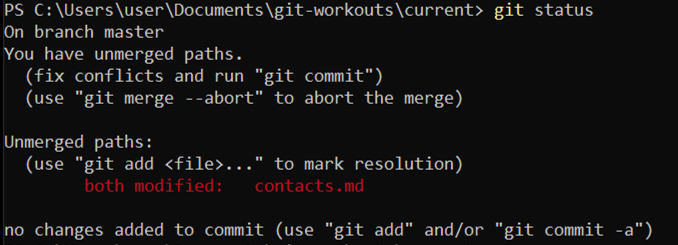
6. Fix Merge Conflict
6.1 Open contacts.md in Notepad
Type in PowerShell prompt and press Enter to execute
notepad contacts.md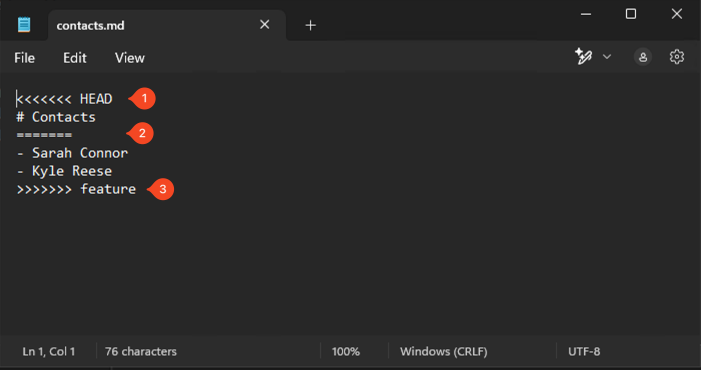
6.2 Remove Git markers and save changes
Remove extra lines added by Git
# Contacts

- Sarah Connor
- Kyle Reese
Press Ctrl+S to save changes
Press Ctrl+W to close the window
6.3 Stage changes
Type in PowerShell prompt and press Enter to execute
git add contacts.md6.4 Commit changes
Type in PowerShell prompt and press Enter to execute
git commit -m "Resolve merge conflict"6.5 View commit history
Type in PowerShell prompt and press Enter to execute
git log --oneline --graph -n 10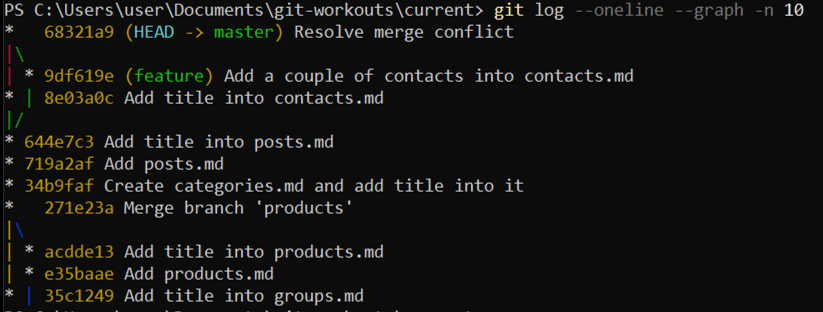
6.6 Remove feature branch
Type in PowerShell prompt and press Enter to execute
git branch -d feature7. Wrap-Up
7.1 Make backup copy
Copy the code, right-click in PowerShell window to paste it and press Enter to execute
cd ..Copy-Item current bak-2.6 -Recurse -ForceRemove-Item current -Recurse -Force