
Duration: 2 minutes
Based on:
1. Set-Up
1.1
1.2 Restore state from backup copy
Copy the code, right-click in PowerShell window to paste it and press Enter to execute
cd ~/Documents/git-workoutsCopy-Item bak-1.4 current -Recurse -Forcecd current2. Create, stage, commit
2.1 Create two files
Type in PowerShell prompt and press Enter to execute
New-Item contacts.md; New-Item todo.md2.2 Stage all changes in one command
Type in PowerShell prompt and press Enter to execute
git add -AAdditional Info
The -A or --all parameter tells Git to stage all changes.
In real-world scenarios, this command is the most commonly used method to stage changes.
2.3 Check current status of the Working Tree
Type in PowerShell prompt and press Enter to execute
git status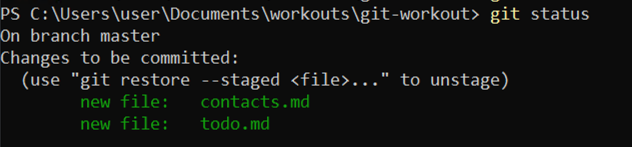
2.4 Commit changes
Type in PowerShell prompt and press Enter to execute
git commit2.5 Edit commit message in Notepad
Type in the Notepad window
Add empty contacts.md and todo.mdPress Ctrl+S to save changes
Press Ctrl+W to close the window
3. Commit history
3.1 View commit history of the repository
Type in PowerShell prompt and press Enter to execute
git log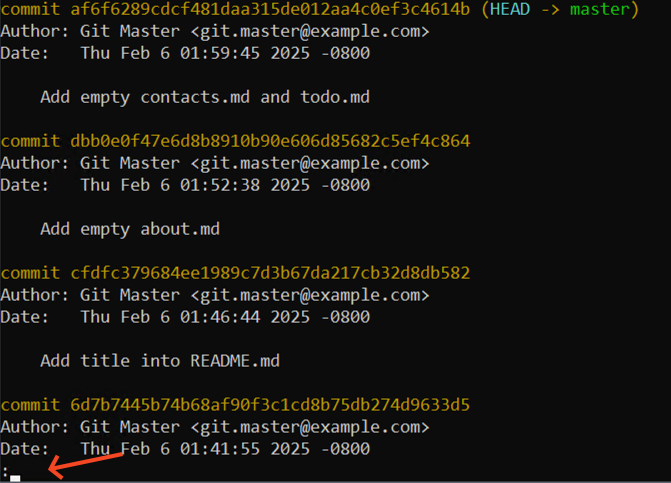
Currently, the history contains more entries than can fit on the screen.
As a result, Git displays the history in what is called pager mode.
To exit this mode, press Q.
3.2 View commit history in more compact way
Type in PowerShell prompt and press Enter to execute
git log --oneline
4. Wrap-Up
4.1 Make backup copy
Copy the code, right-click in PowerShell window to paste it and press Enter to execute
cd ..Copy-Item current bak-1.5 -Recurse -ForceRemove-Item current -Recurse -Force