
Duration: 2 minutes
Based on:
1. Set-Up
1.1
1.2 Restore state from backup copy
Copy the code, right-click in PowerShell window to paste it and press Enter to execute
cd ~/Documents/git-workoutsCopy-Item bak-1.5 current -Recurse -Forcecd current2. Folder and file
2.1 Create folder
Type in PowerShell prompt and press Enter to execute
mkdir img2.2 Check current status of the Working Tree
Type in PowerShell prompt and press Enter to execute
git status
Additional Info
Git doesn't track other file system changes beyond adding, deleting, or modifying files.
Until files are added to a folder, Git will ignore the folder.
2.3 Create file in the folder
Type in PowerShell prompt and press Enter to execute
New-Item img/logo.svg2.4 Check current status of the Working Tree
Type in PowerShell prompt and press Enter to execute
git status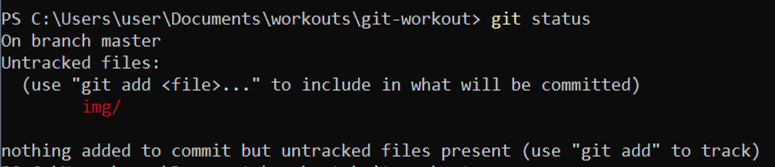
3. Stage and commit
3.1 Stage changes
Type in PowerShell prompt and press Enter to execute
git add -A3.2 Check current status of the Working Tree
Type in PowerShell prompt and press Enter to execute
git status
3.3 Commit changes
Type in PowerShell prompt and press Enter to execute
git commit -m "Add empty logo.svg"3.4 View commit history of the repository
Type in PowerShell prompt and press Enter to execute
git log --oneline
4. Wrap-Up
4.1 Make backup copy
Copy the code, right-click in PowerShell window to paste it and press Enter to execute
cd ..Copy-Item current bak-1.6 -Recurse -ForceRemove-Item current -Recurse -Force