
Duration: 2 minutes
Based on:
1. Set-Up
1.1
1.2 Restore state from backup copy
Copy the code, right-click in PowerShell window to paste it and press Enter to execute
cd ~/Documents/git-workoutsCopy-Item bak-1.3 current -Recurse -Forcecd current2. Set Notepad as Git editor
Type in PowerShell prompt and press Enter to execute
git config core.editor "notepad"Additional Info
After this configuration change, the Notepad editor will open instead of Vim when running the git commit command without -m parameter.
For instructions on setting other editors as the default in Git, visit the page.
3. Use new configuration
3.1 Create about.md file
Type in PowerShell prompt and press Enter to execute
New-Item about.md3.2 Stage file
Type in PowerShell prompt and press Enter to execute
git add about.md3.3 Commit changes
Type in PowerShell prompt and press Enter to execute
git commitThe Notepad editor window is opened to write a message for the commit
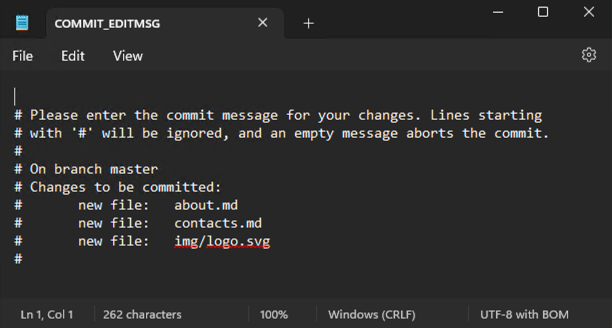
Additional Info
Ignore the text automatically added by Git.
Any lines starting with # will not be included in the commit message.
3.4 Edit commit message in Notepad
Type in the Notepad window
Add empty about.mdPress Ctrl+S to save changes
Press Ctrl+W to close the window
3.5 View commit history of the repository
Type in PowerShell prompt and press Enter to execute
git log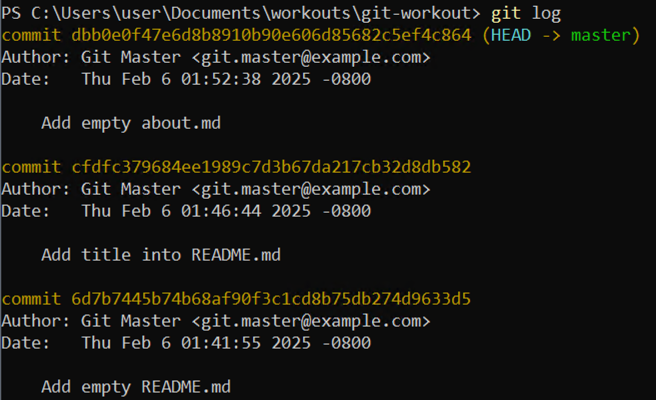
5. Wrap-Up
5.1 Make backup copy
Copy the code, right-click in PowerShell window to paste it and press Enter to execute
cd ..Copy-Item current bak-1.4 -Recurse -ForceRemove-Item current -Recurse -Force