
Duration: 2 minutes
Based on:
1. Set-Up
1.1
1.2 Create folders
Type in PowerShell prompt and press Enter to execute
mkdir ~/Documents/git-workouts/currentAdditional Info
The
mkdircommand in PowerShell will create the entire directory chain if any part of it does not exist.
E.g.git-workoutsfolder will be created if it doesn't exist.
On Unix-like systems (macOS, Linux), the-pflag must be added to achieve the same behavior.The
~symbol is an alias for the current user's home directory.
On Windows, this is a folderC:\Users\<user name>.
1.3 Switch into current folder
Type in PowerShell prompt and press Enter to execute
cd ~/Documents/git-workouts/current2. Init repository
2.1 Check current status of the Working Tree
Type in PowerShell prompt and press Enter to execute
git statusCurrent directory is not a part of any Git repository

2.2 Initialize Git repository in current folder
Type in PowerShell prompt and press Enter to execute
git initAdditional Info
- The
git initcommand creates a hidden.gitfolder inside the current folder.
In this hidden folder, Git stores the history of snapshots of the Working Tree’s file system and various internal information. - In Git terms, the Working Tree is the folder that contains the
.gitfolder.
This term will be used to refer to thecurrentfolder.
2.3 Check current status of the Working Tree
Type in PowerShell prompt and press Enter to execute
git status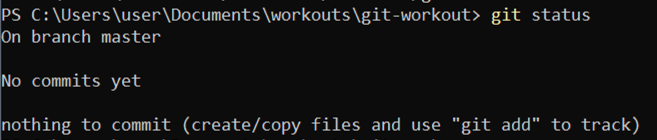
3. Minimal configuration
3.1 Configure user name
Type in PowerShell prompt and press Enter to execute
git config user.name "Git Master"3.2 Configure email of the user
Type in PowerShell prompt and press Enter to execute
git config user.email "git.master@example.com"Explanation
Before you can create a snapshot of the file system's state (commit), you must configure the username and email.
This information will be added to every commit to identify the author of the changes.
4. Wrap-Up
4.1 Make backup copy of the folder
Copy the code, right-click in PowerShell window to paste it, and press Enter to execute
cd ..Copy-Item current bak-1.1 -Recurse -ForceRemove-Item current -Recurse -ForceExplanation
This group of actions makes a copy of the current folder that will be used in the next Actomix to start from the current state of the repository.